PDF Guide: Creation, Editing, and Security
PDF (Portable Document Format) is the most common format for sharing documents platform-independently. This guide covers PDF creation, editing, protection, and security topics.
Last updated:
What is PDF and why is it used?
PDF was developed by Adobe in 1993 and became an ISO standard (ISO 32000) in 2008. Key advantage: looks the same on every device and operating system.
PDF use cases: Contracts, invoices, reports, e-books, form filling, digital signatures, archiving.
PDF vs Word: Word is editable, PDF is fixed. Word files look different on different devices, PDF looks the same everywhere.
PDF security and protection
Password protection: You can add a password to prevent opening or printing. Two levels: user password (opening) and owner password (editing/printing).
Digital signature: You can add a digital signature to prove the document has not been modified. The signature breaks if the document is edited.
Watermark: You can add 'Draft', 'Confidential', or logo watermark to make copying difficult.
Note: PDF protection is not strong. Password-protected PDFs can be brute-forced. PDF protection is not sufficient for sensitive documents.
PDF editing tips
1. Back up before editing. PDF editing cannot be undone.
2. Text editing is limited. Editing text in PDF is not as easy as in Word; font incompatibility can cause issues.
3. Image editing: Changing or deleting images is easier.
4. Page management: Adding, deleting, reordering, and rotating pages are the most common operations.
5. Form filling: Use Adobe Acrobat or online tools to fill PDF forms.
Utilgo PDF tools
Utilgo offers PDF merge, split, compress, convert (Word/Excel/JPG), protect, unlock, OCR, delete pages, reorder, and more PDF tools. Most tools run in the browser.
Try a real example file
This document was created for demonstration and contains no customer or employee data. Download the input and actual tool output to compare them.
Example checked on:
This page-operation example uses a PDF with previously flattened fields. For fillable forms, separately check that fields survive page copying.
Checks on this example
- Input pages
- 3
- Output pages
- 6
- Input copies
- 2
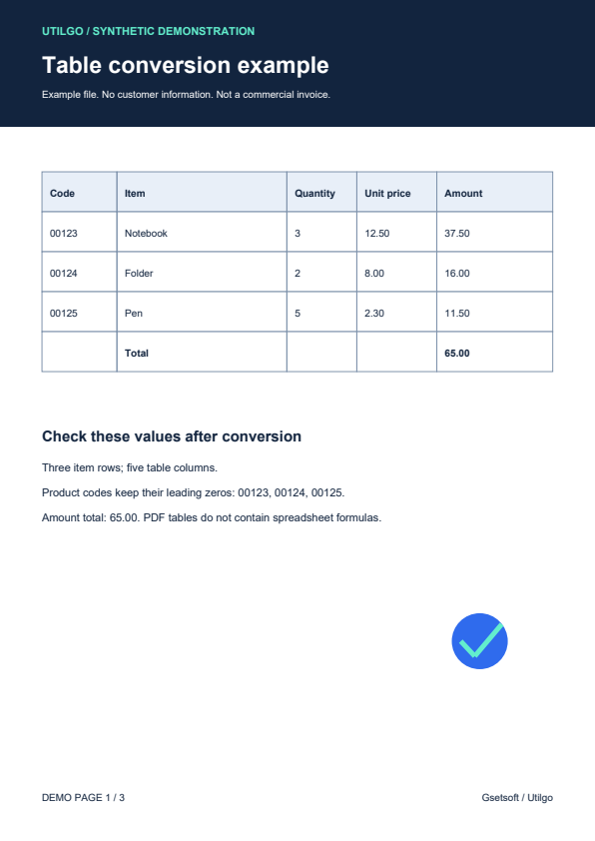
Only the example below was verified. Other files may produce different layouts or results; keep the original.
Related tools
Step-by-step usage guides
Practical articles on this topic
Adding PDF Page Numbers: Before or After Merging?
Merged documents may retain different numbering systems.
PDF Merge and Split Guide: Manage Your Files
Merging multiple PDFs into one file or splitting a large PDF into pages are frequently needed operations.
PDF Security: Encryption, Signatures, and Protection
PDF documents can contain contracts, invoices, and confidential information.