Adding PDF Page Numbers: Before or After Merging?
Merged documents may retain different numbering systems. Adding new numbers helps readers navigate, but does not automatically erase old numbers or update links in a table of contents.
Last updated:
Finalize the page order first
If three sections will be merged and a cover added, number the completed document last. Finish insertion, deletion and rearrangement first. Removing pages afterwards may leave gaps in the printed numbering; restart from the unnumbered original when necessary.
A starting number is not a page selection
Starting at 3 writes 3 on the first page of the file; it does not skip the first two pages. The tool numbers all pages sequentially. Choose position, prefix and suffix. A prefix of “Report — ” with start 1 produces “Report — 1”. A suffix is literal text, not an automatic total-page field.
Check for footer collisions
Make sure the chosen top or bottom position does not overlap dates, logos or old numbering. Inspect first, middle and last pages, plus landscape or rotated pages. The visible number may differ from the viewer’s physical page counter. Clarify which numbering you mean when referring someone to a page.
Keep the downloaded copy
Processing happens in the browser. Download under a new name and check that long prefixes or suffixes stay on the page. Added numbers are page content; the tool creates neither an automatic contents table nor clickable navigation. Keep modified copies separate from signed originals.
Try a real example file
This document was created for demonstration and contains no customer or employee data. Download the input and actual tool output to compare them.
Example checked on:
Settings used in this run
- Position
- Bottom right
- Start
- 1
- Prefix
- Demo
- Suffix
- / 3
Checks on this example
- Input pages
- 3
- Output pages
- 3
- First number
- 1
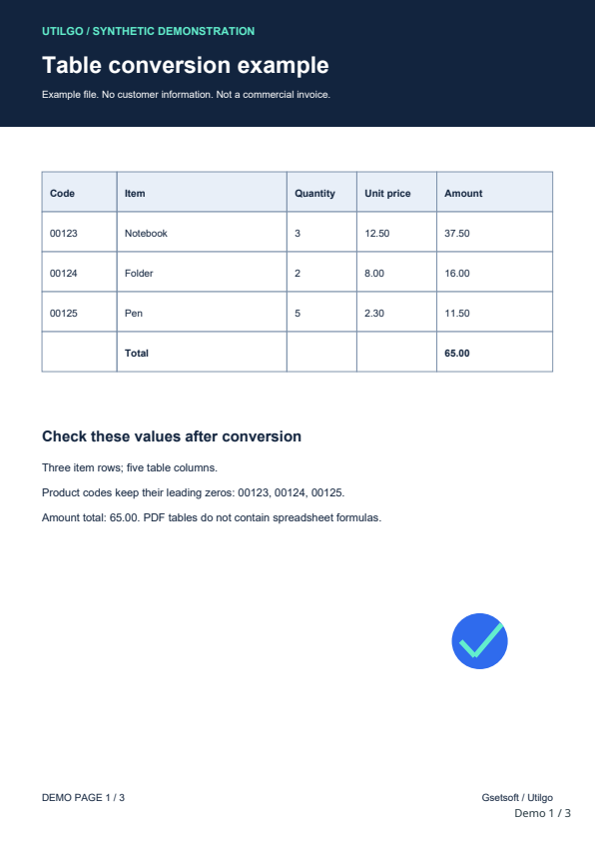
Only the example below was verified. Other files may produce different layouts or results; keep the original.