What Changed Between Two PDFs? Checking Quotes and Reports
A revised quote may keep the same total while changing a delivery date or product line. Use PDF comparison to locate pages worth reviewing, rather than treating an unchanged result as a complete approval.
Last updated:
Check versions and page order
Keep clearly named old and new files and check their selection order. The tool compares matching page numbers. A new cover shifts subsequent pages; many reported differences do not necessarily mean every paragraph was edited.
Use a concrete checklist
Imagine product code 00123, a total of 1,250 and delivery on 15 May. Open changed pages and verify code, quantity, unit price, total and date in the original PDF. Read additions and deletions with the surrounding sentence, not as isolated fragments.
Distinguish scans and visual differences
The tool checks extractable text and reduced page images. Scans can show visual changes but cannot yield word differences without a text layer. Zoom into small signatures or lines in the original. An unchanged result does not prove byte-for-byte equality or validate a signature.
Know the review limits
Each PDF may contain up to 30 pages. The text-difference list uses only the first 300 extracted lines per page; inspect dense tables separately. Processing happens in the browser. Keep the results table and source files, naming your review notes so the relevant version is clear.
Try a real example file
This document was created for demonstration and contains no customer or employee data. Download the input and actual tool output to compare them.
Example checked on:
This page-operation example uses a PDF with previously flattened fields. For fillable forms, separately check that fields survive page copying.
Checks on this example
- Input pages
- 3
- Files inside ZIP
- 3
- Pages per file
- 1
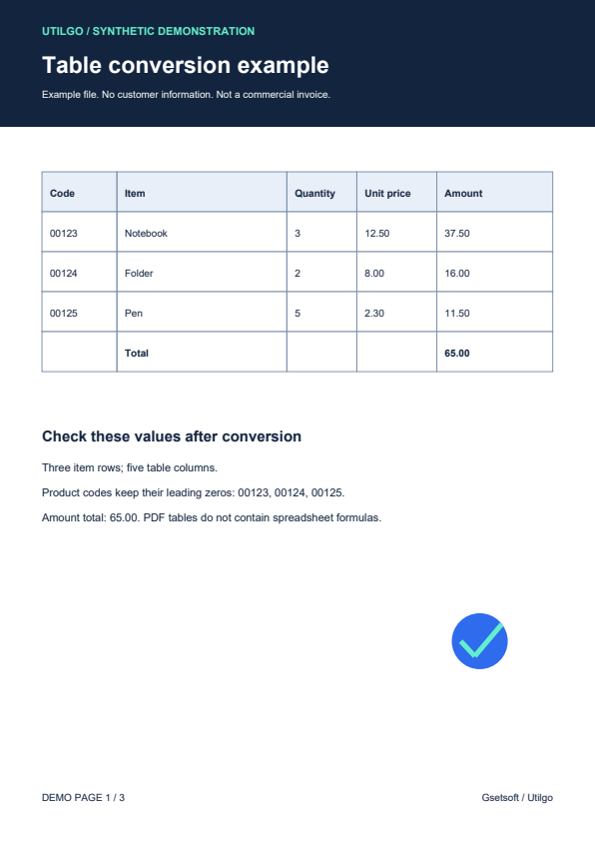
Only the example below was verified. Other files may produce different layouts or results; keep the original.