Split a PDF into Separate Page Files
ReadySeparate a multipage PDF into individual one-page PDF files. Process the document in your browser and download a ZIP without uploading the source.
All tools are free to use. File size and processing limits may vary by tool.
How to use Split PDF
Select the PDF and run; pages are named like page-001.pdf. Ideal for pulling a single page out of an archive.
Browser tools keep files on your device. Advanced document tools upload files for temporary server processing; the tool shows this before upload. Web lookups send queries to the server and public lookup services.
Split PDF - Divide Pages into Separate Files
An accountant receiving a 240-page expense file at year end rarely needs the whole document at once, usually only March invoices and September statements stored in separate folders. Utilgo Split PDF runs entirely in your browser and turns that bulk file into single pages or custom ranges such as 1-40 and 41-80 with one click. Nothing leaves your device, so client names and tax IDs stay on your computer during the whole process. You just review the thumbnails, decide which pages belong in invoice-january.pdf, and start the split.
Read the guide →Practical articles on this topic
Try a real example file
This document was created for demonstration and contains no customer or employee data. Download the input and actual tool output to compare them.
Example checked on:
This page-operation example uses a PDF with previously flattened fields. For fillable forms, separately check that fields survive page copying.
Checks on this example
- Input pages
- 3
- Files inside ZIP
- 3
- Pages per file
- 1
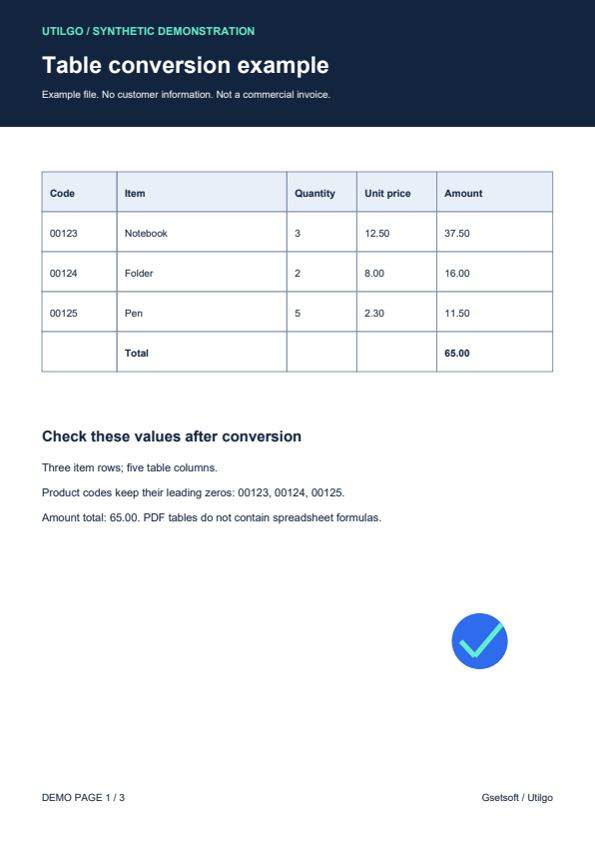
Only the example below was verified. Other files may produce different layouts or results; keep the original.
Related tools
Compress PDF
Choose image quality to reduce the size of a PDF file. Compare the output for screen viewing or printing and check that small text remains readable.
Merge PDF
Combine multiple PDFs into a single file. Arrange reports and attachments, join the PDFs in your browser and download the result without uploading the files.
PDF to Word
Turn a PDF into a Word document. Choose editable text, tables and images, or preserve page appearance by placing each page into Word as an image.
Word to PDF
Turn a Word document into a PDF file. Upload DOC or DOCX, then inspect fonts, page breaks and table alignment in the downloaded document.
PDF to JPG
Turn PDF pages into JPG images. Up to 30 pages and 12 megapixels per page are supported; a single page downloads as JPG, more as ZIP. Files are processed in this browser and never uploaded.
JPG to PDF
Combine JPG images into a single PDF document. JPEG only, up to 40 megapixels per image. Files are processed in this browser and never uploaded.
Continue with this PDF
Send the completed PDF to compression, page extraction, rotation, watermarking or numbering without selecting it again. Filled forms can also go to flattening. You start each step; modifying a document may affect digital signatures. Split-result ZIP files are not transferred.
Transfer happens between open tabs; we do not save the file in browser storage for this. This step does not start a new upload. Choosing server processing in the destination uploads the file again; its size limit applies.