PDF Compression: Balancing File Size and Readability
A smaller PDF is useful only if it remains readable. Image-heavy and text-heavy documents compress differently. This article explains how to choose quality and check the resulting document.
Last updated:
How compression works
Resampling images can reduce size but also remove detail. An already compressed file may shrink little or grow; there is no fixed savings percentage. PDF/A does not prohibit compression altogether; evaluate archival requirements separately from size.
Choosing quality
Utilgo uploads one file for server processing. The interface offers 150, 72 and 300 DPI; it does not offer a separate lossless mode, a 10–100 quality slider or batch processing in this tool. Start with 150 DPI and compare 300 DPI for small text or print. 72 DPI can damage fine detail.
Example and checks
Hypothetical example: reducing 10 MB to 7 MB saves (10−7)/10×100 = 30%. This is not a performance promise. Check page count, small text, barcodes, links and images in the download. Do not use an output with missing content; keep the original.
Signed documents and files
Reprocessing can invalidate digital signatures. Keep the signed original. Read the limits shown in the tool and the privacy page before uploading; a download link is not a permanent archive.
Try a real example file
This document was created for demonstration and contains no customer or employee data. Download the input and actual tool output to compare them.
Example checked on:
At 150 DPI this example did not get smaller: the output is slightly larger. An already compressed PDF may not shrink; compare size and readability.
Settings used in this run
- Quality
- 150 DPI
Checks on this example
- Input pages
- 1
- Output pages
- 1
- Input size (bytes)
- 112212
- Output size (bytes)
- 113843
- Rendered pages
- 1
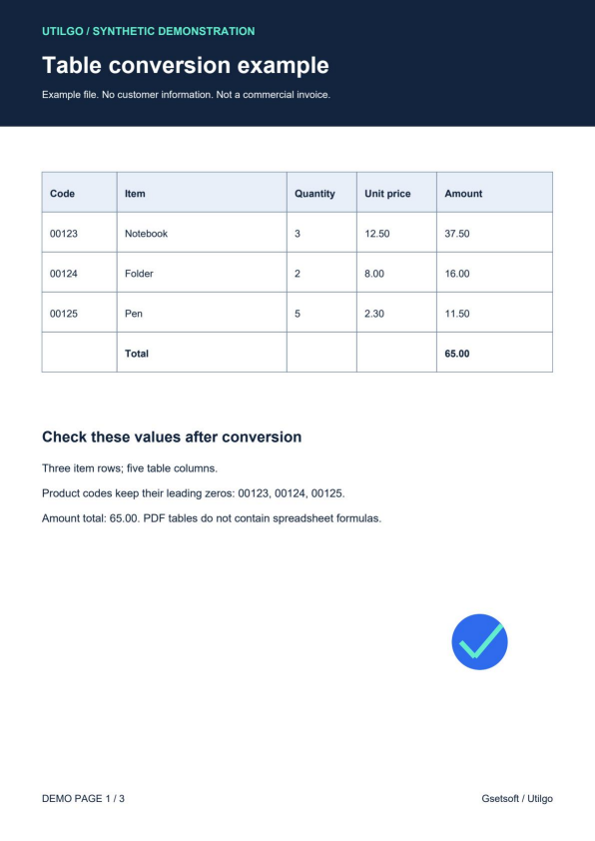
Only the example below was verified. Other files may produce different layouts or results; keep the original.