Cropping PDF Margins: Hidden Content Is Not Deleted
Wide blank margins can make scans awkward to read. The PDF crop tool reduces the visible page area. It is not a method for removing confidential information: content outside the cropped area may remain in the file.
Last updated:
Start with small margins
Enter top, right, bottom and left margins in millimetres. Try 5 mm on each side first. The same values apply across all pages, so do not judge only the first page. Inspect rotated pages and pages with different dimensions separately in the output.
Separate blank space from content
A page number at the bottom or a thin heading at the top can fall into an apparently empty margin. Zoom into the first, middle and last pages after downloading. Check tables and footnotes too. A viewer may make text look larger when fitting the cropped page, but the text content is not rewritten.
Cropping is not secure redaction
Moving a phone number outside the visible page does not safely erase it. The tool changes the visible-area setting; do not assume irreversible content removal. Processing happens in the browser. Save under a new name and retain the original. If margins leave no visible area, try smaller values.
Try a real example file
This document was created for demonstration and contains no customer or employee data. Download the input and actual tool output to compare them.
Example checked on:
Settings used in this run
- Top (mm)
- 5
- Right (mm)
- 5
- Bottom (mm)
- 5
- Left (mm)
- 5
Checks on this example
- Input pages
- 3
- Output pages
- 3
- Crop per edge (mm)
- 5
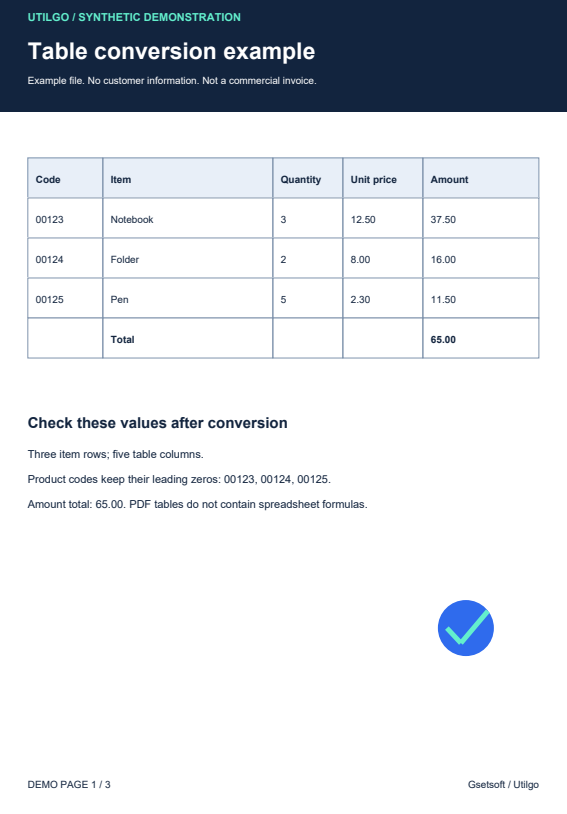
Only the example below was verified. Other files may produce different layouts or results; keep the original.