File Conversion Guide: PDF, Image, and Audio Formats
Converting between different file formats is a frequently needed operation in daily digital tasks. This guide explains the most common file conversion types and things to watch out for.
Last updated:
PDF conversion
PDF to Word: Editable text and tables. Complex layouts (multi-column, table-heavy) may break during conversion.
PDF to Excel: Table data is extracted. OCR is needed for scanned PDFs. Cell merging and formula loss may occur.
Word to PDF: Most reliable conversion. Layout is preserved, fonts are embedded. File size may increase.
Image to PDF: JPEG/PNG images are converted to PDF pages. Resolution is preserved, file size may increase.
Image conversion
JPEG → PNG: Conversion to lossless format. Transparency cannot be added (JPEG has no transparency). File size increases.
PNG → JPEG: Conversion to lossy format. Transparency is lost (white background). File size decreases.
Any → WebP: Modern format. 25-35% smaller file size. Not supported in older browsers.
RAW → JPEG: Camera RAW files converted to processed JPEG. Color profile and exposure are adjusted.
Audio conversion
Video to MP3: Audio extraction from video files. Used for podcasts, music, and voice notes.
WAV → MP3: From lossless to lossy format. File size decreases by 90%. Quality setting (bitrate) selectable.
MP3 → WAV: From lossy to lossless format. Quality does not improve (loss is irreversible) but needed for editing.
Format selection: MP3 (universal, small), WAV (lossless, large), OGG (open source), M4A (Apple).
Conversion tips
1. Keep the original file. Conversion cannot be undone.
2. Check output quality. Especially in PDF to Word and image conversions, layout may break.
3. Check file size. File size may increase after conversion (especially PDF to Word).
4. Use batch processing. Converting multiple files with the same settings saves time.
5. Prefer tools that process in the browser. Your files are not sent to servers.
Utilgo conversion tools
Processing differs between the tools discussed here: some operations run in the browser, while document conversion, video processing and background removal use the server. Read the relevant tool page and privacy information before uploading.
Try a real example file
This document was created for demonstration and contains no customer or employee data. Download the input and actual tool output to compare them.
Example checked on:
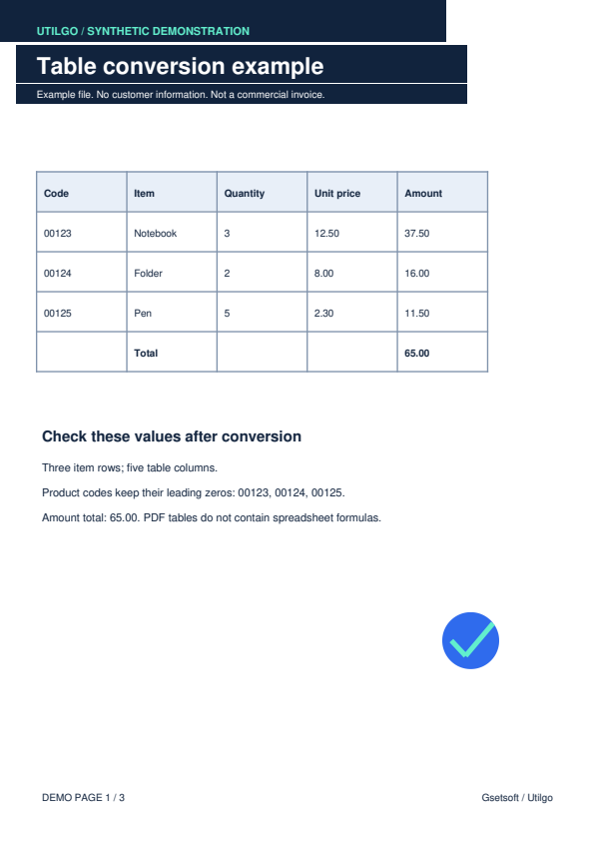
The editable example contains text and table elements, but its heading layout changed. Appearance mode embeds the page as an image with no separate text nodes. Compare both files for your purpose.
Editable Word
Settings used in this run
- Word mode
- Editable
Checks on this example
- Embedded images
- 1
- Checked code
- 00123
- Checked total
- 65.00
- Word table elements
- 4
- Rendered pages
- 1
Word preserving page appearance
Settings used in this run
- Word mode
- Preserve appearance
Checks on this example
- Embedded images
- 1
- Editable text nodes
- 0
- Rendered pages
- 1
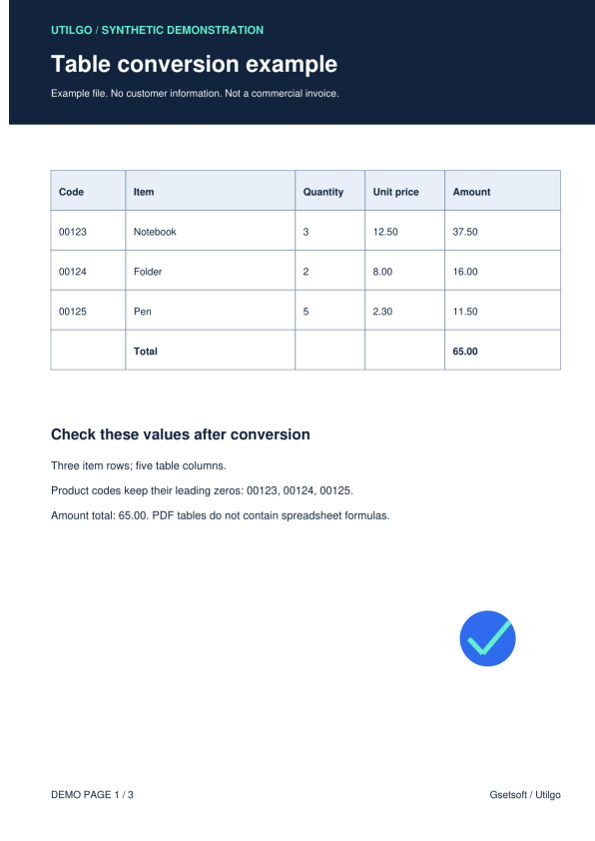
Only the example below was verified. Other files may produce different layouts or results; keep the original.
Step-by-step usage guides
Practical articles on this topic
Why Does the Layout Change When Converting PDF to Word?
A shifted heading or a changed table after conversion does not necessarily mean the PDF is damaged.
Image Formats: JPEG vs PNG vs WebP Comparison
JPEG, PNG, and WebP — three fundamental image formats. Which one should you use when?
Video Tools Guide: Compression, Conversion, and Editing
Video files can be large and in different formats. This guide covers video compression, format conversion, and editing tools.