Flattening a PDF Form: Check the Fields Before Sending
Names, dates and selections in a fillable PDF may live in interactive fields. Flattening fixes their existing appearance onto the page. Keep an editable original if those same fields need to be changed later.
Last updated:
Fill and save first
Complete an application form in your PDF app. Close and reopen the saved file to check that the name and selected boxes remain visible. An entry shown on screen but not saved into the file may disappear during later processing.
Flattening is not image conversion
Utilgo uses the existing form appearances; it does not automatically turn every page into a photo or perform OCR. Do not assume it repairs blank or incomplete fields. Save the source properly and try a small copy first.
Test appearance and interaction
Inspect every text field, checkbox and long answer in the downloaded result. A field no longer being editable does not make the whole file impossible to modify with other PDF tools. Flattening is neither password protection nor digital-signature validation.
Keep two clearly named copies
Use names such as form-original.pdf and form-flattened.pdf. Return to the original if characters disappear, boxes look empty or answers are clipped. Processing runs in the browser. Open the final copy in another viewer and compare dates and selections before sending.
Try a real example file
This document was created for demonstration and contains no customer or employee data. Download the input and actual tool output to compare them.
Example checked on:
Use the separate form example for field values. Flattening kept the value visible and left zero editable fields. Keep the original of forms or signed files.
Checks on this example
- Input pages
- 3
- Output pages
- 3
- Form fields before
- 1
- Form fields after
- 0
- Retained text
- Demonstration only
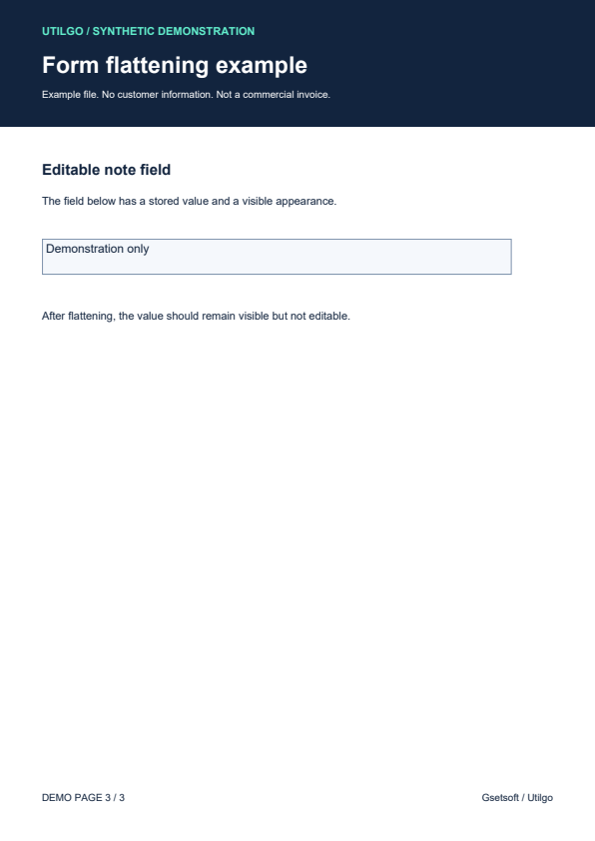
Only the example below was verified. Other files may produce different layouts or results; keep the original.