Convert PDF to Excel and Extract Tables
ReadyConvert PDF tables into an Excel XLSX file. Select pages and use OCR for scans, then compare columns, numbers and totals with the source document.
All tools are free to use. File size and processing limits may vary by tool.
How to use PDF to Excel
Upload a PDF and optionally select pages such as 1,3-5. A conversion accepts up to 30 pages. Keep “Preserve document layout” to retain the report together. In separate tables mode, you can choose automatic, ruled, borderless or stream detection. Choose the document language for scans; OCR is limited to 10 pages. Compare headings, first and last records and totals with the PDF.
Browser tools keep files on your device. Advanced document tools upload files for temporary server processing; the tool shows this before upload. Web lookups send queries to the server and public lookup services.
Extract PDF tables into Excel without losing track of columns
The default document layout places PDF pages in order on one worksheet. Headings, employee blocks and ruled tables are mapped to editable cells. Choose separate worksheets when you want to analyze detected tables independently; that mode also includes Report and source-text tabs.
Read the guide →Try a real example file
This document was created for demonstration and contains no customer or employee data. Download the input and actual tool output to compare them.
Example checked on:
The sample preserved code 00123 and total 65.00. Number format was set to text; formulas were not recovered. Spreadsheet cells do not reproduce the PDF’s pixel layout.
Settings used in this run
- Excel layout
- Document layout
- Table detection
- Automatic
- OCR
- Off
- Number format
- Text
- Language
- English
Checks on this example
- Worksheets
- 1
- Checked code
- 00123
- Checked total
- 65.00
- Formula cells
- 0
- Rendered pages
- 1
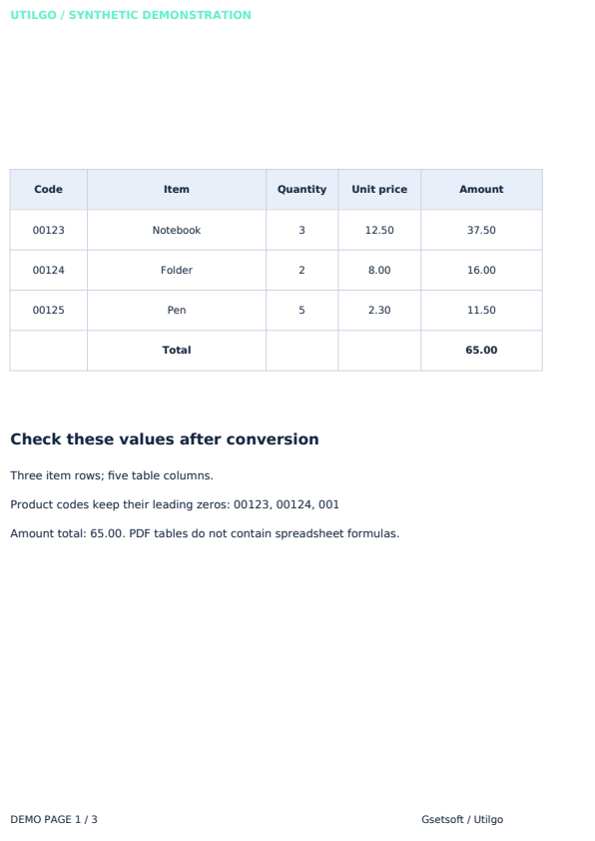
Only the example below was verified. Other files may produce different layouts or results; keep the original.
Related tools
Compress PDF
Choose image quality to reduce the size of a PDF file. Compare the output for screen viewing or printing and check that small text remains readable.
Merge PDF
Combine multiple PDFs into a single file. Arrange reports and attachments, join the PDFs in your browser and download the result without uploading the files.
Split PDF
Separate a multipage PDF into individual one-page PDF files. Process the document in your browser and download a ZIP without uploading the source.
PDF to Word
Turn a PDF into a Word document. Choose editable text, tables and images, or preserve page appearance by placing each page into Word as an image.
Word to PDF
Turn a Word document into a PDF file. Upload DOC or DOCX, then inspect fonts, page breaks and table alignment in the downloaded document.
PDF to JPG
Turn PDF pages into JPG images. Up to 30 pages and 12 megapixels per page are supported; a single page downloads as JPG, more as ZIP. Files are processed in this browser and never uploaded.